
One-Click Demo Import 101: Launch Your WordPress Site in Minutes
If you’re new to WordPress, the hardest part isn’t clicking “Install.” It’s everything that comes after: choosing pages, building layouts, figuring out menus, setting a homepage, styling sections, and making the whole thing look like a real business website.
That’s exactly why one-click demo import exists.
With AnpsThemes, you can start from a complete, professionally designed demo website and make it yours – fast. Instead of building from a blank page, you import a ready-made site structure and then replace the content with your own.
What is One-Click Demo Import (in plain English)?
One-click demo import is a feature that copies a full demo website into your WordPress site.
When you import a demo, you typically get:
- A homepage (already designed)
- Inner pages (About, Services, Contact, etc.)
- Menus (so navigation works right away)
- Widgets and basic layout settings
- Page builder layouts (depending on the theme)
- Sample content you can replace
Instead of spending days building pages from scratch, you can have a “real site” in minutes.
Who is this for?
This feature is perfect if you are:
- A WordPress beginner
- A DIY business owner who wants a site fast
- A freelancer who needs a quick starting point
- Anyone who doesn’t want to fight with layouts and settings on day one
If your goal is: “I just want something that looks good online quickly,” demo import is your shortcut.
Why importing a demo saves so much time
Here’s what usually eats time when building a new site:
- Creating the right pages (and not forgetting any)
- Designing each section (hero, services, testimonials, etc.)
- Setting typography, spacing, and structure
- Building menus and assigning them correctly
- Making the homepage show as the homepage
- Making it all look consistent
With demo import, most of this is already done. Your job becomes simple:
Import → Replace text → Replace images → Adjust branding → Publish
Before you import: 3 quick prep steps (do this once)
To make your demo import smooth, do these quick checks:
- Use a fresh WordPress install (recommended)
Demo import works best on a clean site, especially if you’re a beginner. - Install and activate the required plugins first
Most demos rely on specific plugins (page builder, sliders, etc.). Your theme will usually prompt you to install them. - Make sure your hosting is not extremely limited
If your hosting has very low memory limits, imports can fail mid-way. (If that happens, it’s usually fixable, more on that below.)
Step-by-step: how one-click demo import works
While the exact names can vary slightly by theme, the flow is usually the same:
Step 1: Install the theme
- Upload the theme zip or install it via your preferred method
- Activate it
Step 2: Install required plugins
After activation, WordPress will typically show a notice like: “This theme recommends/required plugins.”
- Install them
- Activate them
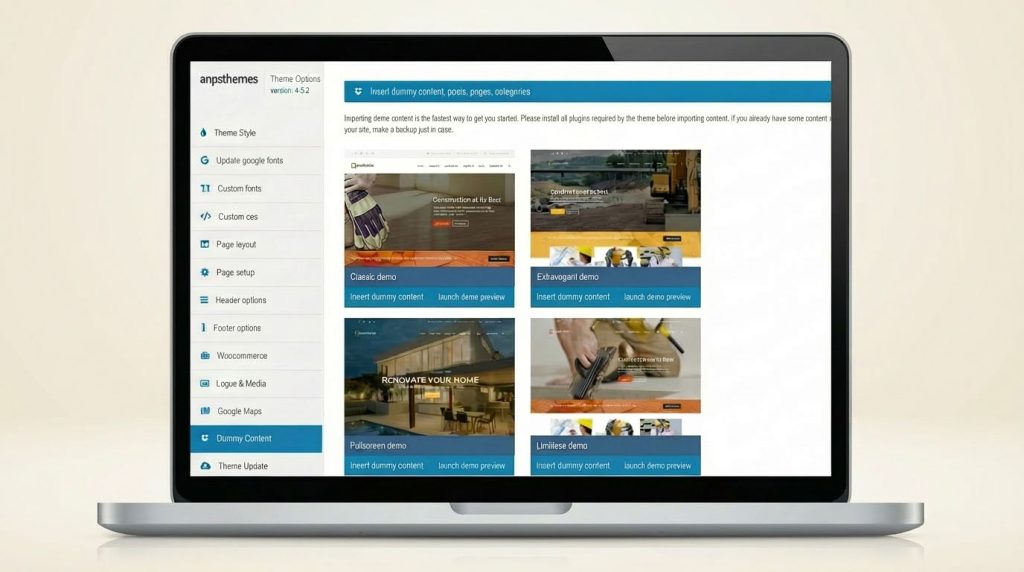
Step 3: Open the Demo Importer
Go to the theme’s demo importer screen (often under Appearance or a theme menu item).
- Choose the demo you like
- Click Import
Step 4: Wait (don’t click twice)
The import might take a few minutes depending on the demo size and your server speed.
What to do right after import (the 10-minute checklist)
Once the demo is imported, do these quick edits first:
- Replace logo and favicon
- Change the hero headline (top of homepage)
- Update contact details (phone/email/address)
- Replace the main “Call to Action” button link
- Swap 3–5 key images (hero + service sections)
- Update About text
- Add your social links
After that, your site already looks “real,” even if you haven’t perfected every page.
Common issues (and easy fixes)
“Import failed” or “stuck on loading”
Most of the time it’s one of these:
- Low PHP memory limit
- Low max execution time
- Hosting timeout
Fix: ask your host to increase limits, or do it yourself if you manage your server. Many hosts can solve this quickly.
The site looks different from the demo
Usually this is because:
- A required plugin wasn’t installed
- A page builder component didn’t import fully
Fix: confirm all required plugins are installed and activated, then re-check the imported pages.
Where to see it in action (AnpsThemes examples)
If you want to preview our themes and see what the demo websites look like before importing, start here:
FAQ: quick answers
Will demo import overwrite my existing site?
It can add a lot of content and settings. If you’re new, it’s best to import on a fresh WordPress install.
Can I delete the demo content later?
Yes. You can edit pages, remove sections, delete sample posts, and replace everything with your own content.
Do I need coding skills?
No. Demo import is built specifically for non-technical users who want a fast start.
Final tip: pick a demo that matches your goal, not your favorite colors
Beginners often choose demos based on colors. A better approach:
- Pick the demo with the closest layout to what you need (services, bookings, portfolio, etc.)
- Colors and images are easy to change later
Structure is what saves you time.
Ready to launch your site the easy way?
If you want a WordPress site that looks professional without starting from scratch, one-click demo import is the fastest path.
Pick a theme, preview the demo, import it, and start replacing content, your website can be online today.