Building a WooCommerce store is easy. Building one that actually runs smoothly, where payments work, orders ship on time, and the store grows without breaking takes a little more thought.
In this guide, we’ll walk you through everything you need to set up a WooCommerce store the right way. From choosing the right theme to configuring shipping and payments, you’ll have a clear picture of what to do and where to start.
Choose the Right WooCommerce Theme for Your Store
Your theme is the foundation. A bad theme slows your store down, breaks on mobile, and becomes harder to fix the longer you wait.
When choosing a WooCommerce theme, look for:
- Built for WooCommerce: not just WordPress, but specifically tested for WooCommerce product pages and checkout
- Mobile-friendly: most shoppers are on their phones; the theme needs to work there first
- Lightweight: avoid themes that load dozens of features you’ll never use
- Actively maintained: outdated themes break with WooCommerce updates and create security risks
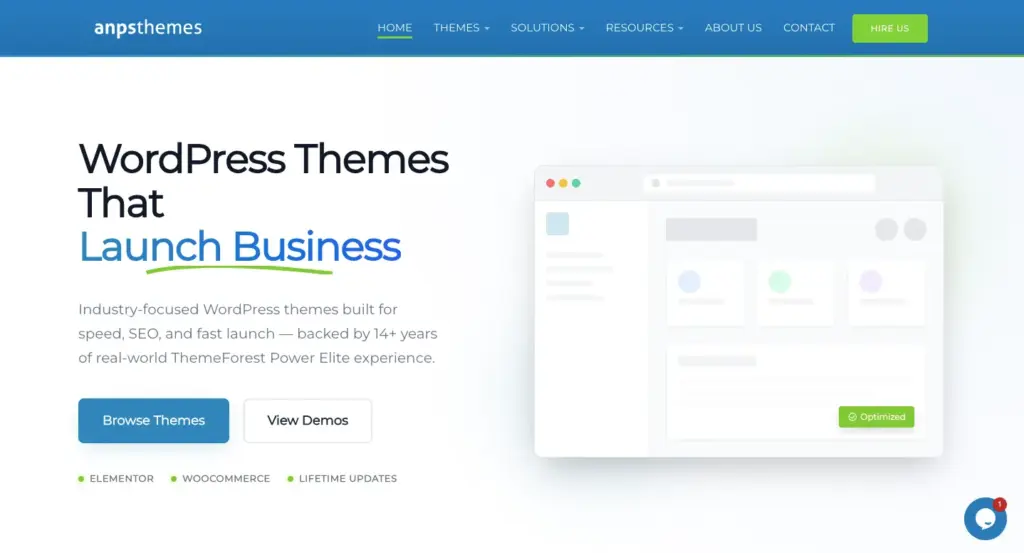
AnpsThemes offers WooCommerce-ready WordPress themes with clean ecommerce layouts built in – product pages, category structures, and checkout flows that work without heavy customization. A good starting point if you want to launch fast without compromising on design.
Design a User-Friendly WooCommerce Store
A store that’s hard to use loses customers before they reach checkout. Good UX is about making it easy for visitors to find what they want and place an order without friction.
- Navigation: Keep your menu simple. Customers should reach any category in one click, with a clear search bar always visible.
- Product Pages: Answer the buyer’s key questions upfront. Put images, price, and the add-to-cart button above the fold. Reviews and FAQs can sit further down.
- Checkout Flow: Keep it short. Enable guest checkout, remove unnecessary fields, and never hide costs until the final step; that’s one of the biggest reasons carts get abandoned.
- Mobile Experience: Test on real devices. Buttons should be easy to tap, images should load fast, and checkout should never require zooming.
Get these four things right, and your store becomes easier to trust and easier to buy from.
Set Up Reliable WooCommerce Payment Gateways
If customers can’t pay easily, nothing else matters. The right payment setup depends on your market, but a few options cover most stores.
The essentials:
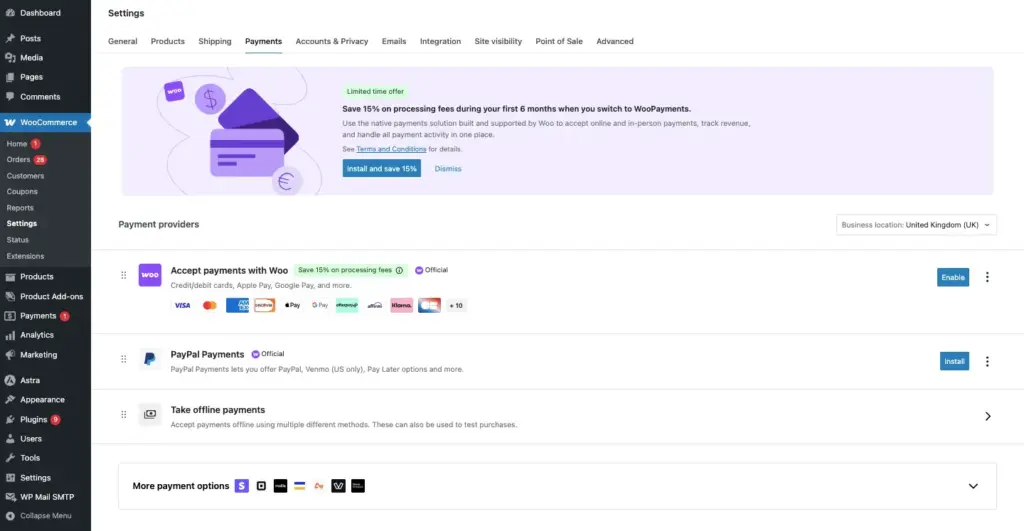
- Stripe – handles cards, Apple Pay, and Google Pay; reliable and well-documented
- PayPal – still expected by a large share of online shoppers
- WooCommerce Payments – Stripe-powered, managed directly inside WooCommerce
For specific markets:
- Razorpay – the go-to for India; supports UPI, net banking, and wallets
- Mollie – strong coverage across Europe with iDEAL, Klarna, and more
Before going live:
- Make sure your store runs on HTTPS; most gateways require it
- Set the correct currency under WooCommerce > Settings > General
- Test every payment method in sandbox mode before switching to live
- Check transaction fees – the difference adds up at volume
Keep your checkout focused. Three to four payment options cover most customers. More than that creates unnecessary confusion.
Configure WooCommerce Shipping the Right Way
Shipping is where many stores start to struggle as they grow. What works at ten orders a week often breaks at a hundred.
Start with WooCommerce’s built-in shipping settings under WooCommerce > Settings > Shipping.
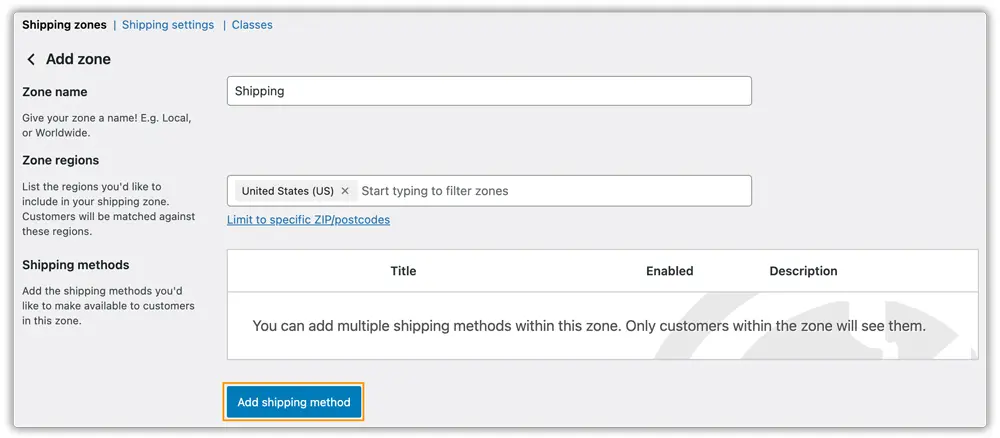
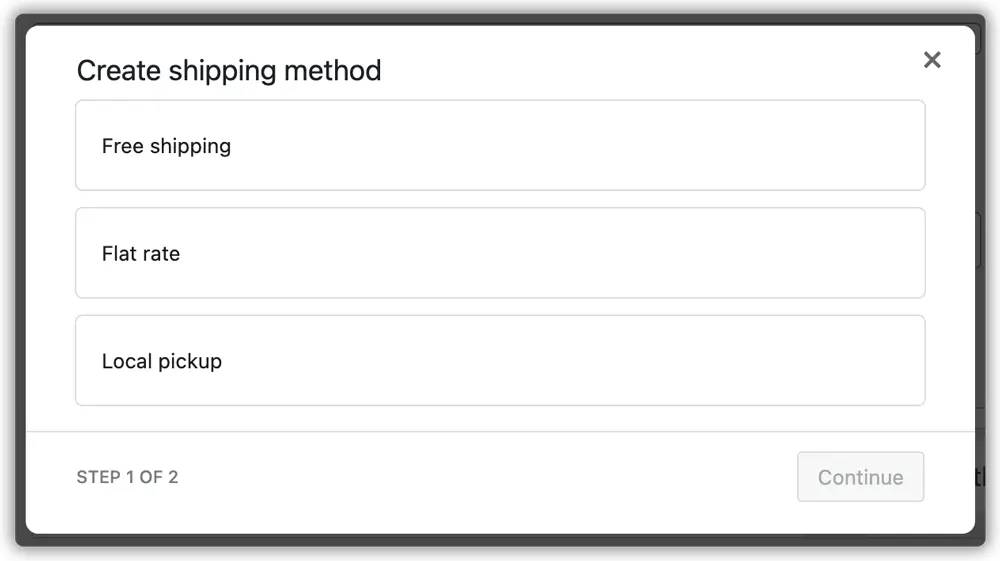
You can set up shipping zones, assign flat-rate or free shipping methods, and handle basic rules here. For simple stores, this is enough.
When you need more – live carrier rates at checkout, label printing, multi-carrier support, a dedicated plugin makes a real difference.
PluginHive’s WooCommerce shipping plugins connect your store directly to carriers such as UPS, FedEx, USPS, DHL, Canada Post, Australia Post, and more. Live rates show at checkout, labels print from the order screen, and tracking updates go to customers automatically without switching between portals or doing any of it manually.
A few things to get right, regardless of what tools you use:
- Define your shipping zones carefully – broad zones lead to wrong rates at checkout
- Test your shipping rates before launch – place test orders from different locations
- Be honest about handling shipping time – if you need two days to process, show that in delivery estimates
- Offer at least one affordable shipping option – surprise shipping costs are the top reason for cart abandonment
Optimize Your WooCommerce Store Performance
A slow store loses visitors and ranks lower in search. Performance is worth getting right before you have real traffic; it’s harder to fix under load.
- Hosting matters most: Shared hosting is often too slow for WooCommerce. Managed WordPress hosts like Kinsta, WP Engine, or Cloudways offer server-level caching and infrastructure built for WordPress.
- Add a caching plugin: WP Rocket or LiteSpeed Cache serves static versions of your pages so the server isn’t rebuilding them from scratch on every visit. Don’t cache cart or checkout pages.
- Compress your images: Large product images are the most common cause of slow WooCommerce stores. Use Imagify or ShortPixel to compress images on upload and serve them in WebP format.
- Use a CDN: Cloudflare’s free tier stores your static files closer to your visitors, reducing load times regardless of where they’re located.
Run regular checks with Google PageSpeed Insights. Focus on Core Web Vitals, as they affect both user experience and how Google ranks your store.
Prepare Your WooCommerce Store for Growth
The setup decisions you make early either make scaling easy or create problems at the worst time. A few things worth getting right before you need them.
- Inventory Management: WooCommerce’s built-in stock tracking works for small catalogues. As your product range grows, look at a dedicated plugin like ATUM to manage inventory properly.
- Multi-Channel Selling: If you plan to sell on Amazon, eBay, or Google Shopping, set up channel integrations early so stock stays in sync and you avoid overselling.
- Email Marketing: Set up Klaviyo or Mailchimp before you have traffic. Abandoned cart flows alone recover a meaningful chunk of lost revenue, and the list you build early compounds over time.
- Analytics: Install Google Analytics 4 with the WooCommerce integration from day one. Knowing which channels drive orders tells you exactly where to focus as you grow.
- Plugin Hygiene: Every plugin adds load and a potential point of failure. Audit regularly and remove anything that isn’t actively contributing to your store.
Get these foundations in place early, and growth becomes something your store is ready for, not something it has to recover from.
Conclusion
Building a WooCommerce store that’s ready for shipping, payments, and growth comes down to getting the basics right from the start. Choose a theme that works, design for your customers, set up payments that cover your market, configure shipping that scales, and keep your store fast. Each of these pieces supports the next.
The good news is that none of this is complicated. With the right setup and the right tools in place, your WooCommerce store can handle growth without breaking. Start with the fundamentals, test everything before you go live, and build from there.