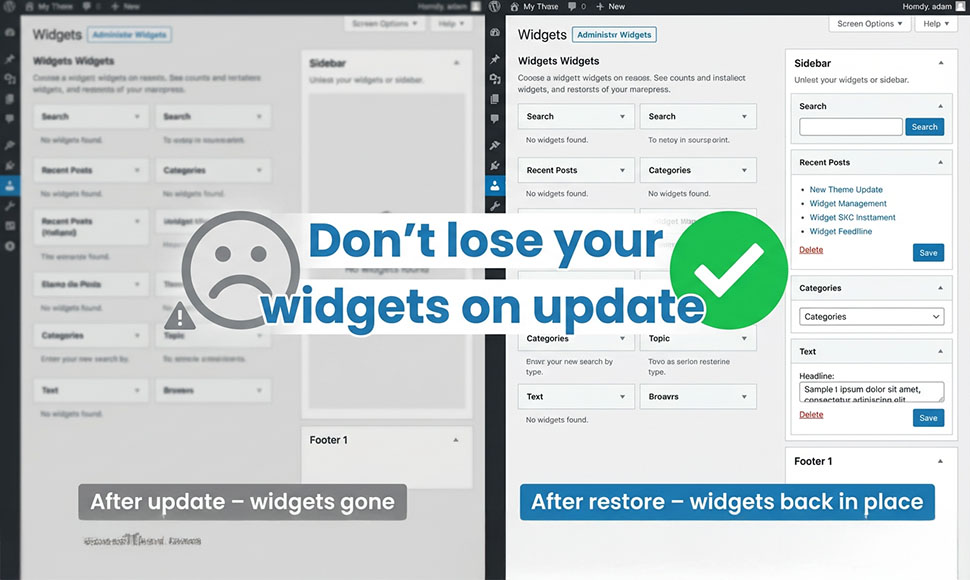
The day started normally. Then the widgets disappeared.
It was a normal support day.
New tickets, usual questions, coffee on the desk.
Then one message came in with the subject line:
“URGENT – My homepage is broken after update 😭”
Inside, the client wrote:
“I just updated and now my sidebar and footer are empty.
All my widgets are gone. Please help, I have a client meeting soon.”
You can probably feel that little punch in the stomach.
If you’ve managed WordPress sites for a while, you’ve seen this movie.
What actually happened
We logged in and checked the site.
The posts were fine.
The pages were fine.
The theme was active.
But the layout?
- The sidebar was empty
- The footer looked broken
- Some parts of the homepage were simply… missing
Then we opened Appearance → Widgets.
And there it was.
All of her widgets were sitting in Inactive Widgets.
Nothing was fully “lost” – but everything was out of place.
If you’ve never seen this before: when you change themes, update certain plugins, or adjust widget areas, WordPress sometimes doesn’t know where each old widget should go. When that happens, it moves them to Inactive Widgets to be safe.
Safe for WordPress.
Not so fun for you.
The slow, painful way to fix it
Because there was no widget backup, we had only one option:
- Drag each widget back from Inactive Widgets
- Try to remember which widget was in which sidebar or footer column
- Check custom HTML, text widgets and forms
- Refresh the site many times until it matched the original layout again
It worked.
But it took almost an hour.
An hour the client could have used to:
- Prepare for the meeting
- Work on content
- Or literally anything more useful than dragging widgets around
Multiply that by several client sites, and this kind of thing can eat your whole day.
Most people back up their site… but not their widgets
Everyone talks about:
- Full backups
- Database backups
- File backups
That’s all important.
But many people forget one simple, practical habit:
Make it easy to backup WordPress widgets before big changes.
Because when something goes wrong, it’s usually not your posts that drive you crazy.
It’s the layout: the sidebars, the footers, those small but important widget areas.
The quiet little feature we built for moments like this
This is exactly why we added a small but powerful feature to our themes:
Widgets Export & Widgets Import
It’s not flashy.
It doesn’t try to impress you.
But on a bad day, it feels like magic.
Here’s how it works:
- Before you update anything important
Open the Widgets Export / Import option in the theme settings. - Click “Export”
Download a file that contains your current widget layout: sidebars, footers, and other widget areas. - If something breaks later
Come back, click “Import”, choose that file… and your widgets jump back where they belong.
No guessing.
No detective work.
No “was this widget in footer 1 or footer 3?”
Just: export → update → import (if needed).
Make “backup WordPress widgets” a quick habit
This tiny habit can save you a lot of stress:
- Updating your theme? → Export widgets first.
- Switching builders or big plugins? → Export widgets first.
- Playing with widget areas? → Export widgets first.
It’s like putting on a seatbelt.
Most of the time, you don’t need it.
But when something goes wrong, you’re very happy it’s there.
With our themes, it takes less than 10 seconds:
- open the tool,
- click Export,
- save the file somewhere safe (project folder, cloud drive, etc.).
Ten seconds now.
Zero panic later.
For agencies and freelancers, this is a lifesaver
If you build sites for clients, this is even more important.
You know the calls:
“Everything was fine yesterday, I just updated, and now the sidebar is broken…”
With widget export/import, you can:
- Restore their layout quickly
- Look like a hero
- And then also show them how to export widgets themselves
It even fits nicely into your client handover checklist:
- ✅ Install theme
- ✅ Configure widgets
- ✅ Export widgets and store the file with project files
- ✅ Explain to the client how to export again before big changes
Your future self will thank you.
Your clients will think you are a genius.
Want this safety net built in?
If you like the idea of never rebuilding widgets from scratch again, it’s already built into our themes.
Our Anpsthemes collection includes:
- Modern WordPress themes for business and niche sites
- Built-in Widgets Export & Import to protect your layout
- Tools designed to save you time on updates and maintenance
👉 Check out our themes here:
Explore all premium WordPress themes →
One small feature. One big difference on a bad day.
That support ticket started with panic:
“My homepage is broken after update.”
It ended with relief:
“All done! Thank you so much, everything looks like before.”
Next time you’re about to hit Update, give yourself those 10 seconds:
- Export widgets.
- Do your update.
- Relax.
If something goes wrong, you won’t be dragging widgets for an hour.
You’ll just click Import… and carry on with your day.